---
notionId: "1bcf0d27c7988064bb35cbf179c8f838"
product: "account"
cluster: "billing"
intent: "account.billing-portal"
docSlug: "billing-portal"
task: "Open the VirtualPBX billing portal"
title: "Open the VirtualPBX billing portal | VirtualPBX"
meta_description: "Use the VirtualPBX Account Management Portal to quickly and easily set billing administrative rights, manage your VirtualPBX subscription, review billing and"
answer: "Use the VirtualPBX Account Management Portal to quickly and easily set billing administrative rights, manage your VirtualPBX subscription, review billing and invoice data, or request help from our team!"
audience: "billing"
updated: "2026-09-24"
legacy: []
headings: [{"depth":2,"text":"Log In to the Portal","id":"log-in-to-the-portal"},{"depth":2,"text":"Set Up User Roles and Permissions","id":"set-up-user-roles-and-permissions"},{"depth":2,"text":"Manage Billing Information","id":"manage-billing-information"},{"depth":2,"text":"Manage Products in the Portal","id":"manage-products-in-the-portal"},{"depth":2,"text":"Request Assistance from VirtualPBX","id":"request-assistance-from-virtualpbx"},{"depth":2,"text":"How to Request Cancellation For Your Account","id":"how-to-request-cancellation-for-your-account"}]
lint: ["answer-first"]
---

[https://www.youtube.com/watch?v=B7OxZtqrrtI](https://www.youtube.com/watch?v=B7OxZtqrrtI)

Table Of Contents

## Log In to the Portal

<ol>
<li><p>Access the Login Page for the VirtualPBX Account Management Portal at <a href="http://manage.virtualpbx.com/">manage.virtualpbx.com</a></p>
</li>
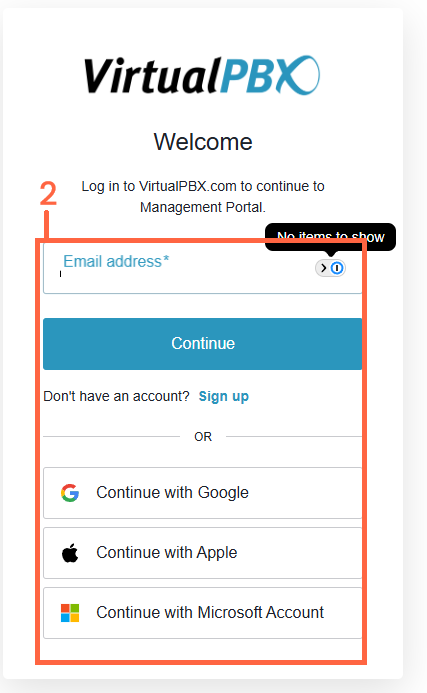
<li><p>Choose Your Authentication Method:</p>
<img src="/assets/billing-portal/Login_page.png" width="427" height="693" alt="Log In to the Portal" loading="lazy" decoding="async">
Click on Your authentication method of choice and log in securely.
<img src="/assets/billing-portal/actman2a.pnp.tiff" alt="Log In to the Portal" loading="lazy" decoding="async"></li>
</ol>

## Set Up User Roles and Permissions

<ol>
<li><p>Navigate to the &quot;User Management&quot; Section within the portal.</p>
</li>
<li><p>Create a user and assign roles to each team member based on their required access:</p>
<img src="/assets/billing-portal/Acctman3a.tiff" alt="Set Up User Roles and Permissions" loading="lazy" decoding="async"></li>
<li><p>Save Changes to ensure permissions are correctly applied.</p>
</li>
</ol>

## Manage Billing Information

<img src="/assets/billing-portal/Acctman4a.tiff" alt="Manage Billing Information" loading="lazy" decoding="async">

<ol>
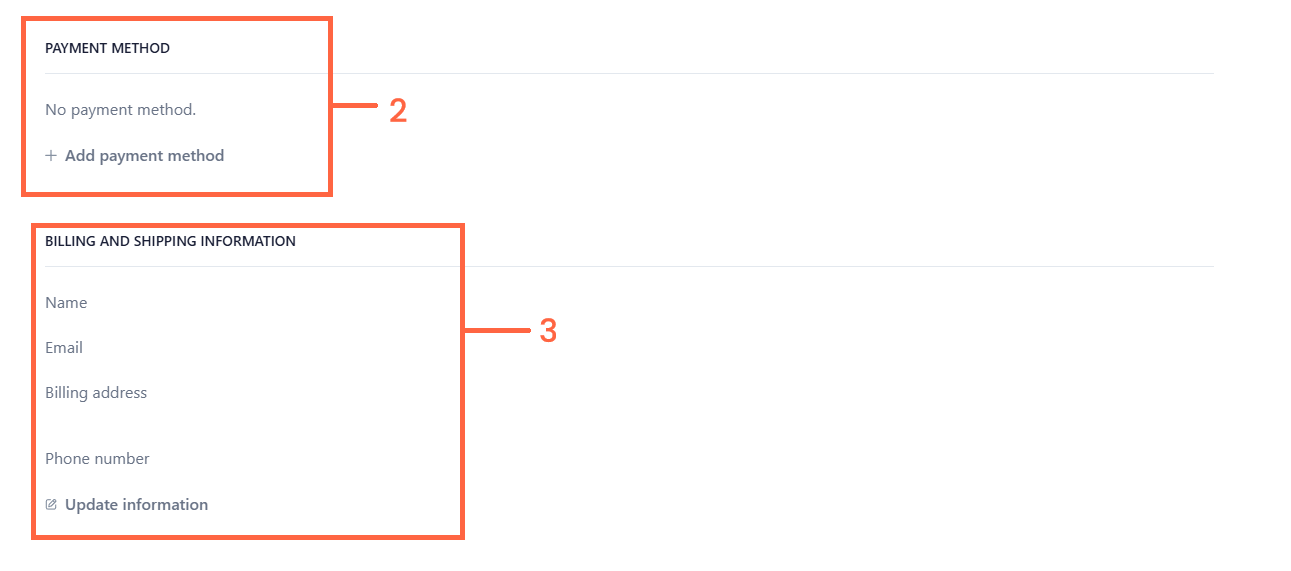
<li><p>Go to the Billing Section from the main dashboard.</p>
<img src="/assets/billing-portal/Payment_Method__Billing_Info.png" width="1291" height="571" alt="Manage Billing Information" loading="lazy" decoding="async"></li>
<li><p>Here you can update Payment Information:</p>
</li>
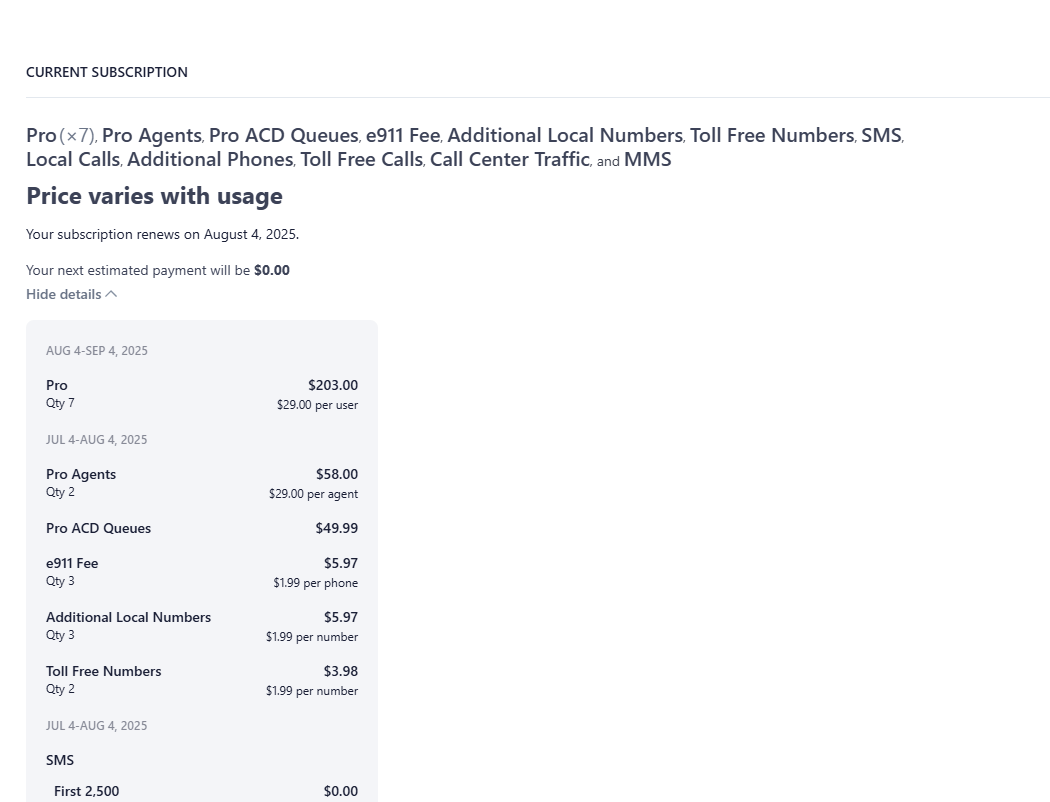
<li><p>You can also update your billing and shipping information here by clicking on “Update Information”.</p>
<img src="/assets/billing-portal/Upcoming_Invoice.png" width="1050" height="802" alt="Manage Billing Information" loading="lazy" decoding="async">
<img src="/assets/billing-portal/Invoice_History.png" width="1262" height="329" alt="Manage Billing Information" loading="lazy" decoding="async"></li>
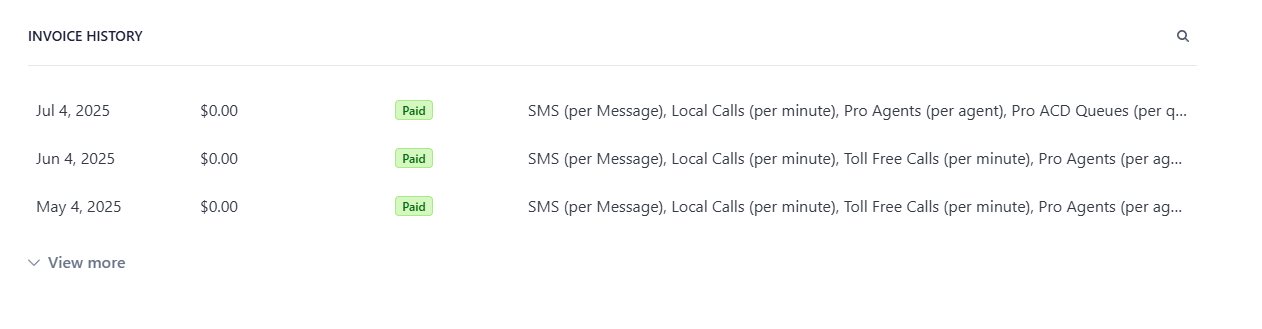
<li><p>Review Invoices:</p>
</li>
</ol>

## Manage Products in the Portal

<ol>
<li><p>Go to the Products Section within the dashboard.</p>
</li>
<li><p>Access the Admin Portal (if applicable):</p>
</li>
<li><p>Edit Product Settings based on your subscription level.</p>
</li>
</ol>

## Request Assistance from VirtualPBX

<ol>
<li><p>Locate the Request Assistance Box within the dashboard.</p>
Enter Your Request Details in the provided field.
<img src="/assets/billing-portal/Accman5a.tiff" alt="Request Assistance from VirtualPBX" loading="lazy" decoding="async"></li>
<li><p>Enter Your Request Details in the provided field.</p>
<img src="/assets/billing-portal/Accman6a.tiff" alt="Request Assistance from VirtualPBX" loading="lazy" decoding="async"></li>
<li><p>Submit the Request:</p>
</li>
</ol>

## How to Request Cancellation For Your Account

<ol>
<li><p>Find the cancel button on the dashboard.</p>
</li>
<li><p>Select Cancel Account if you wish to terminate the account.</p>
</li>
<li><p>Follow the Prompts to confirm or submit your request.</p>
</li>
</ol>