<aside> <img src="notion://custom_emoji/43741957-c26f-4195-85a2-0c607c0adcf1/24ff0d27-c798-802c-a831-007a38775418" alt="notion://custom_emoji/43741957-c26f-4195-85a2-0c607c0adcf1/24ff0d27-c798-802c-a831-007a38775418" width="40px" />
Advanced reporting lets you expand your ability to research your calls, call traffic, agent distribution, and much more. If your service plan supports it, you can explore all kinds of options to see how your phone system is helping you grow your business, and even find areas in which you may consider improving to make your business better!
</aside>
Overall Filter - This is a filter that can be used to set and shared with all other reports. However, that overall filter may not work with some of the reports that are set up. It is best to use the filter in the actual report itself.
With reports, you can have one or more of your reports emailed to you at a specific time on a daily, weekly, or monthly basis. Single or multiple reports can be added to the email delivery. Also, multiple emails can be added to a single report setup. This makes it easy for a specific department get a specific set of reports and another department can receive a completely different set of reports.
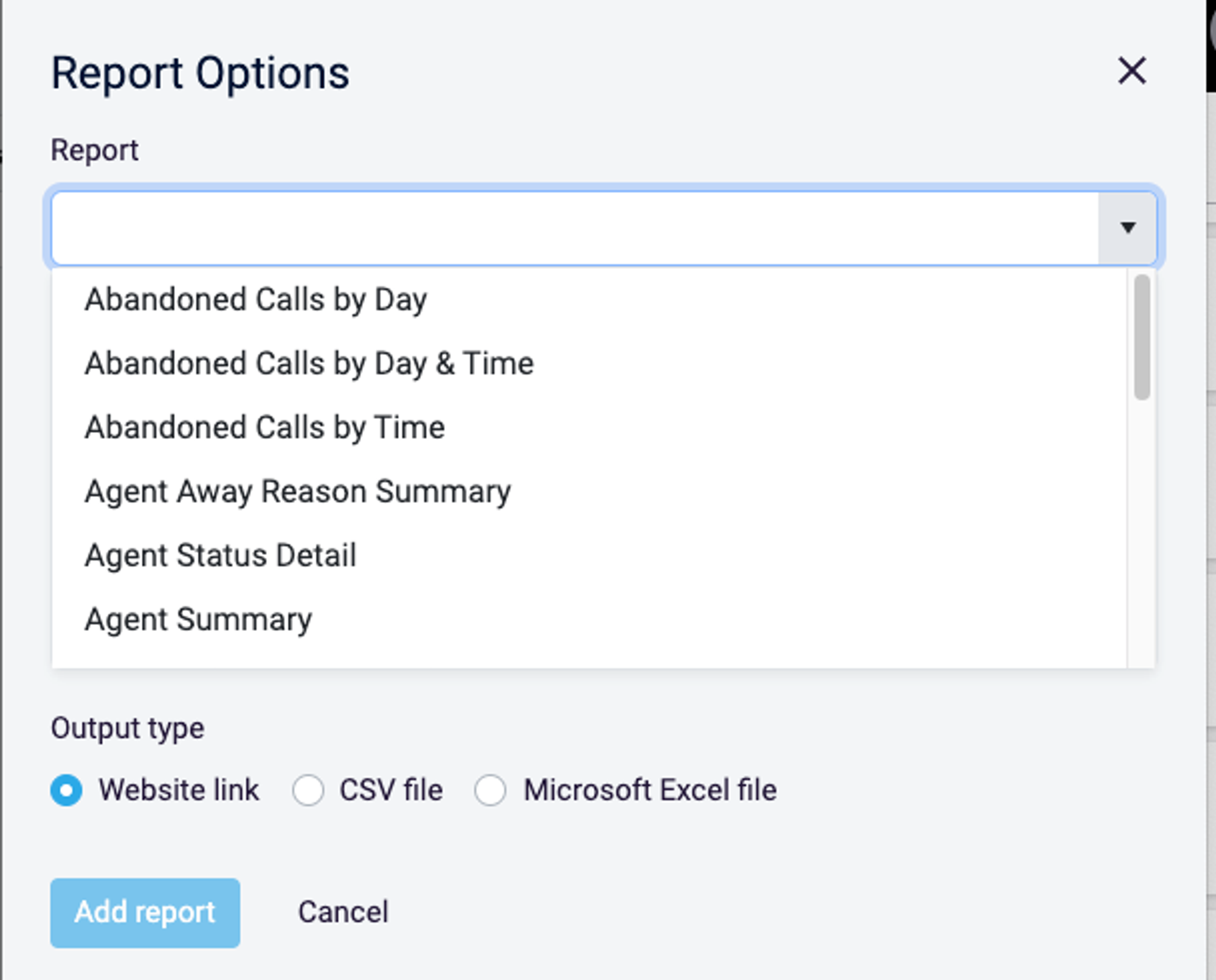
To add a report you will first name the report. You are given the option to describe the report or add any notes about it you like. Next, you will see a dropdown of all your current reports.
Select the report(s) and the format in which you would like to receive them.
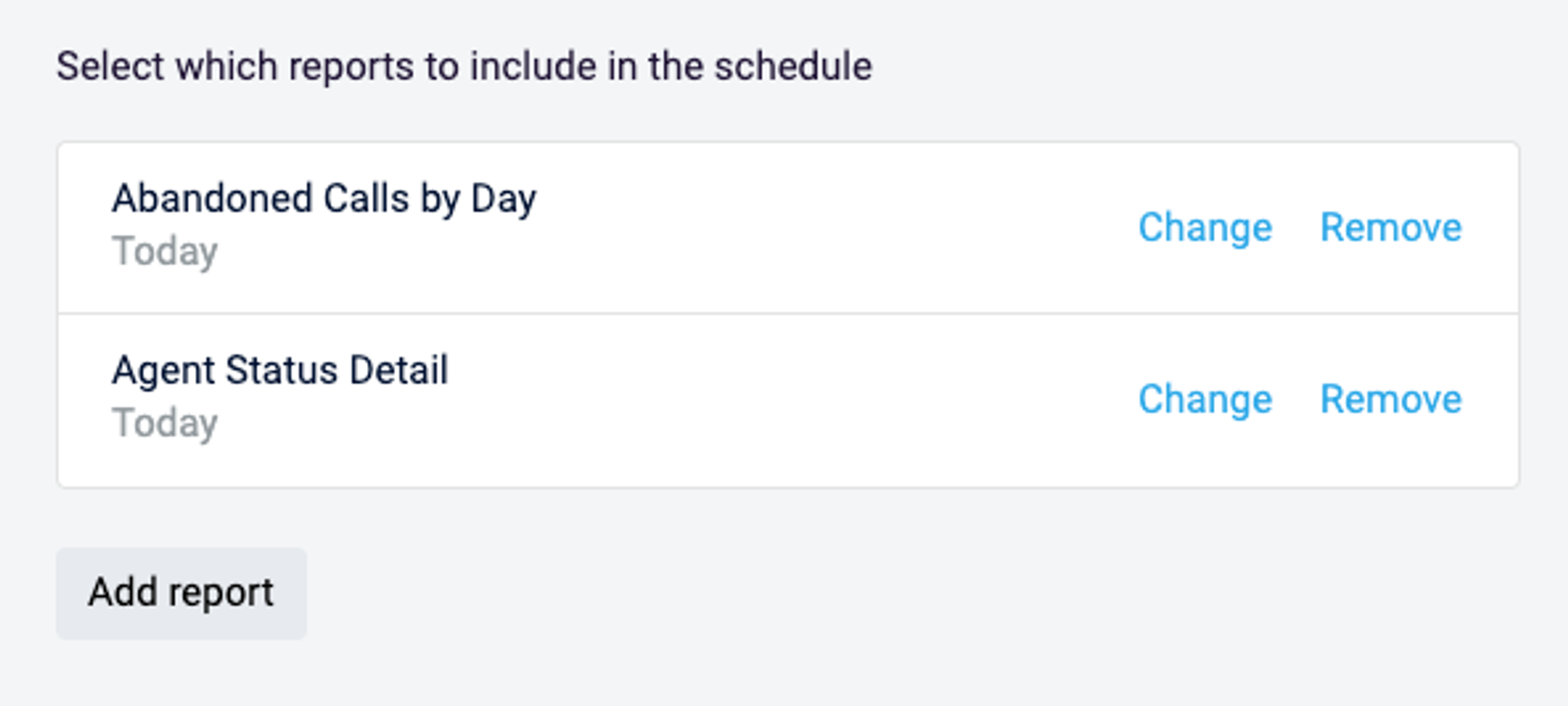
Next, it will ask you to select or enter in the desired email address(s)
After adding the email address(s) you can create the report.
This is what the report will look like once created. You have the option to delete the report, edit the report and run the report. Running the report will email the report as soon as it was finished compiling the information.

The emailed report will look something like this in your inbox.