---
notionId: "3f9f0d27c79880419267f330e2d9ba02"
product: "smarter-voice"
cluster: "apps"
intent: "smarter-voice.desktop-softphone"
docSlug: "desktop-softphone"
task: "Use the desktop softphone in Smarter Voice"
title: "Use the desktop softphone in Smarter Voice | VirtualPBX"
meta_description: "The desktop softphone in Smarter Voice is the Mac and Windows app for making and taking calls on a business number. An admin adds a Softphone device on the"
answer: "The desktop softphone in Smarter Voice is the Mac and Windows app for making and taking calls on a business number. An admin adds a Softphone device on the user, then the person downloads the app from VirtualPBX and signs in with the same dashboard username, password, and account name. The dial pad places and answers calls, and a live call can be muted, held, transferred, or merged. Contacts, voicemail, queue status, and audio settings are in the same app."
audience: "user"
updated: "2026-10-19"
legacy: []
headings: [{"depth":2,"text":"Desktop Softphone","id":"desktop-softphone"},{"depth":3,"text":"Accessing & Logging In","id":"accessing--logging-in"},{"depth":3,"text":"Mac Desktop Softphone:","id":"mac-desktop-softphone"},{"depth":3,"text":"Windows Desktop Softphone:","id":"windows-desktop-softphone"},{"depth":3,"text":"Click to Call","id":"click-to-call"},{"depth":3,"text":"Getting Started","id":"getting-started"},{"depth":3,"text":"Making and Taking Calls with the Dial Pad","id":"making-and-taking-calls-with-the-dial-pad"},{"depth":3,"text":"Additional Softphone Features","id":"additional-softphone-features"}]
lint: []
---

Below you will find a comprehensive guide on how to operate the Desktop version of our Softphone. For more information on how to create the devices for your users, please refer to our user guide [here](https://docs.virtualpbx.com/smarter-voice/create-users#3-soft-phone).

Table of Contents

## Desktop Softphone

The VirtualPBX Softphone is the desktop version of the mobile Softphone that allows you to make and take phone calls through your business’s number, as well as utilize features such as transferring and hold. If the Softphone device has not been created yet, please refer to [our guide here](https://docs.virtualpbx.com/smarter-voice/create-users#3-soft-phone) on how to create it on the user. 

### Accessing & Logging In

Before you start

<ul>
<li><p>Ask your VirtualPBX admin to add a Softphone device for you in the Dashboard. </p>
</li>
<li><p>Have your VirtualPBX Dashboard login ready. The app uses the same username, password, and account name.</p>
</li>
<li><p>Download the app only from VirtualPBX, links for both Mac and Windows can be found here: <a href="https://www.virtualpbx.com/apps/">https://www.virtualpbx.com/apps/</a></p>
</li>
</ul>

### Mac Desktop Softphone:

<ol>
<li><p>Download the Mac file. It saves to your Downloads folder.</p>
</li>
<li><p>Double-click the .zip to open it. You’ll see VirtualPBX.</p>
</li>
<li><p>Drag VirtualPBX into your Applications folder.</p>
</li>
<li><p>Open VirtualPBX from Applications.</p>
</li>
<li><p>If your Mac says it can’t verify the app, click Done. Then go to Apple menu → System Settings → Privacy &amp; Security, scroll down, and click Open Anyway next to VirtualPBX. You only have to do this once.</p>
</li>
<li><p>Click Allow when your Mac asks about the microphone and notifications.</p>
</li>
<li><p>Sign in with your Dashboard login, then make a quick test call.</p>
</li>
</ol>

Tip: to keep it handy, right-click the VirtualPBX icon in your Dock and choose Options → Keep in Dock.

### Windows Desktop Softphone:

<ol>
<li><p>Download the Windows file. It saves to your Downloads folder.</p>
</li>
<li><p>Right-click the .zip and choose Extract All, then Extract. Keep all the files in that folder together.</p>
</li>
<li><p>Move the folder somewhere it will stay, like your Documents folder. Don’t run the app from inside the .zip.</p>
</li>
<li><p>Double-click VirtualPBX.exe.</p>
</li>
<li><p>If you see “Windows protected your PC,” click More info, then Run anyway.</p>
</li>
<li><p>Click Allow if Windows asks about the firewall, the microphone, or notifications.</p>
</li>
<li><p>Sign in with your Dashboard login, then make a quick test call.</p>
</li>
</ol>

Tip: right-click VirtualPBX on the taskbar and choose Pin to taskbar.

### Click to Call

Set up click-to-call. This lets you click a phone number on a website or in your CRM to dial it in VirtualPBX.

<ul>
<li><p>Windows: in VirtualPBX, go to Settings → Click to call → Choose default, and pick VirtualPBX.</p>
</li>
<li><p>Mac: open FaceTime → Settings → General, and set Default for calls to VirtualPBX.</p>
</li>
</ul>

### Getting Started

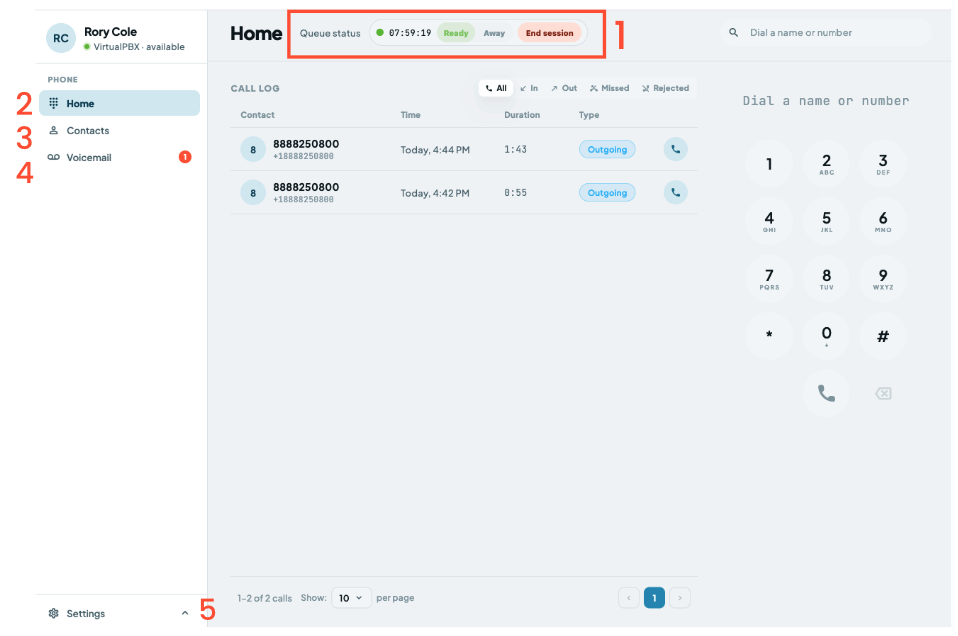
Enter the same login details that you use for your VirtualPBX Dashboard. You can always use the Forgot password? option if you’re unsure of your login credentials. You can also click on the eyeball icon to see your password, and choose ‘Remember Me’ to save the account’s information

<img src="/assets/desktop-softphone/image.png" width="1244" height="1552" alt="Getting Started" loading="lazy" decoding="async">

### Making and Taking Calls with the Dial Pad

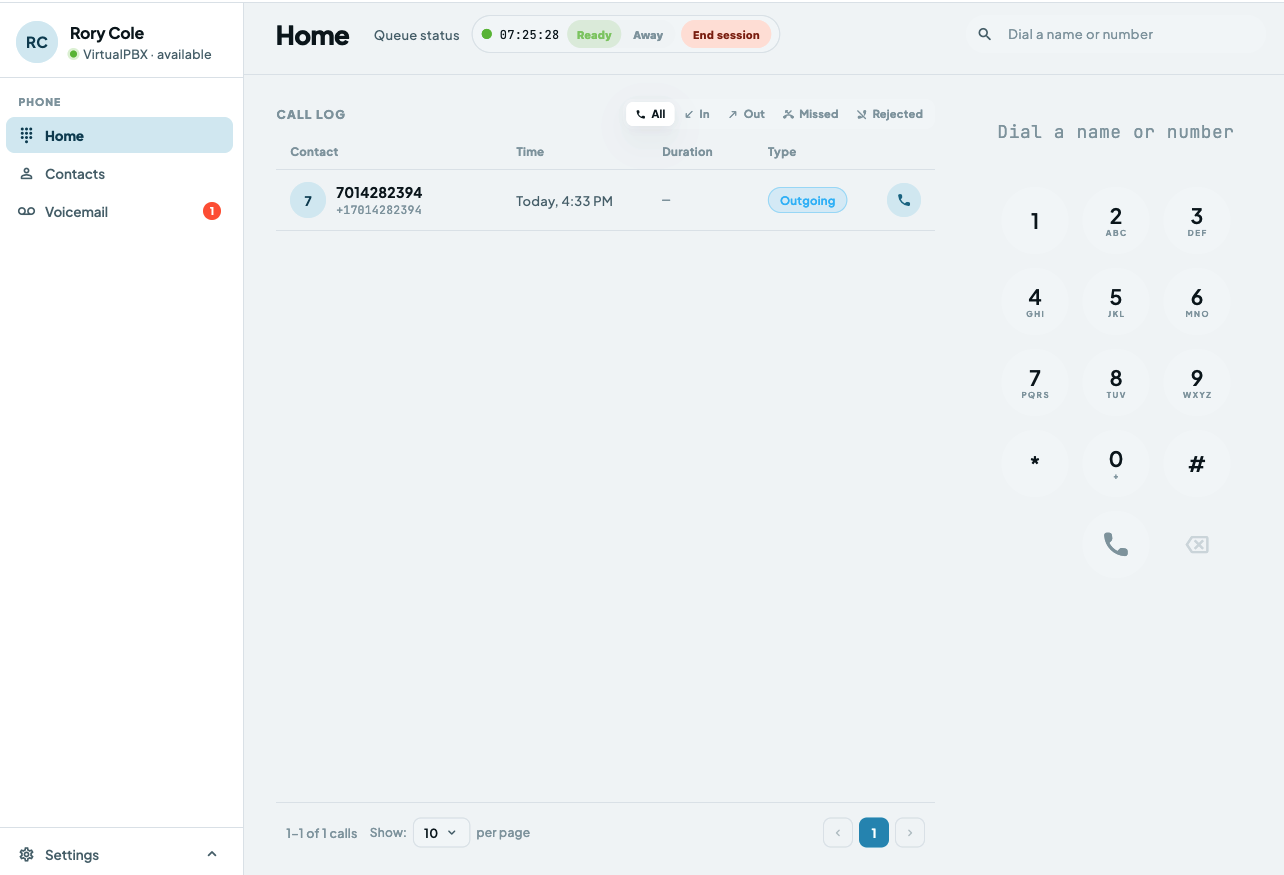
After logging in you will be on the home page where your call history lives 

<img src="/assets/desktop-softphone/2-image.png" width="1284" height="875" alt="Making and Taking Calls with the Dial Pad" loading="lazy" decoding="async">

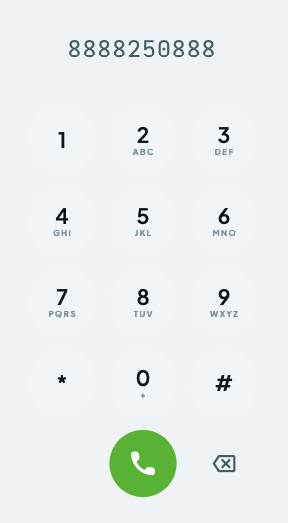
To make a call, enter the phone number that you wish to call out to under Dial a Number and click on the call button.

<img src="/assets/desktop-softphone/3-image.png" width="288" height="523" alt="Making and Taking Calls with the Dial Pad" loading="lazy" decoding="async">

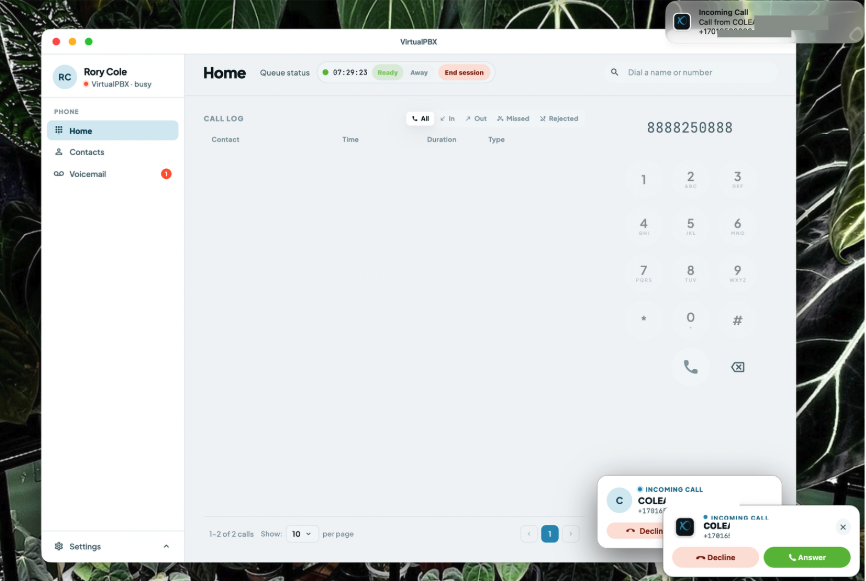
Inbound calls will ring through the speaker you have set and will display an option to decline (in red on the left) the incoming call, or answer it (in green on the right). Notifications will pop up on your desktop as well as in the application itself 

<img src="/assets/desktop-softphone/4-image.png" width="866" height="581" alt="Making and Taking Calls with the Dial Pad" loading="lazy" decoding="async">

<ol>
<li><p>Decline the incoming call</p>
</li>
<li><p>Answer the incoming call</p>
<img src="/assets/desktop-softphone/5-image.png" width="831" height="552" alt="Making and Taking Calls with the Dial Pad" loading="lazy" decoding="async">
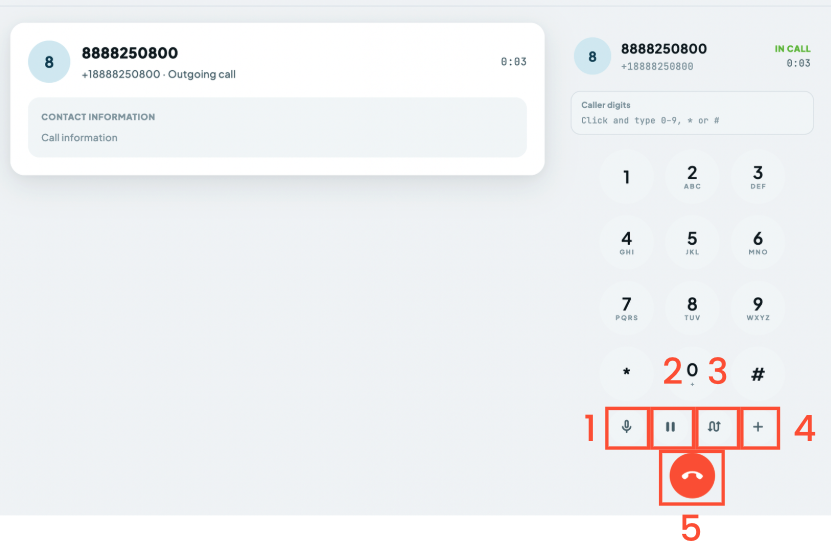
Once on the call, additional options become available on the dial pad.</li>
<li><p>Mute - Toggle the mute button on and off to prevent others from hearing you temporarily.</p>
</li>
<li><p>Hold - Use the pause button to place the call on hold, or to retrieve the call from hold.</p>
</li>
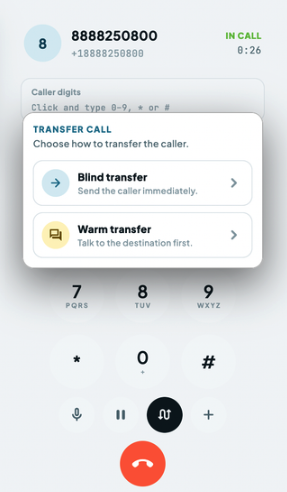
<li><p>Transfer - Utilize either a Warm or Cold Transfer 
Warm Transfer: Speak with the person you’re transferring to first to provide any additional context 
Cold Transfer: Transfer fully to the secondary person without speaking with them first </p>
<img src="/assets/desktop-softphone/6-image.png" width="287" height="492" alt="Making and Taking Calls with the Dial Pad" loading="lazy" decoding="async"></li>
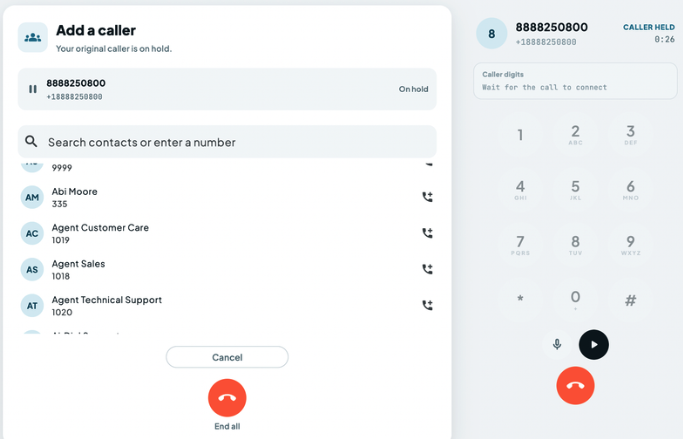
<li><p>Add a call - Places the initial call on hold while you are dialing the secondary contact or number. </p>
<img src="/assets/desktop-softphone/7-image.png" width="683" height="439" alt="Making and Taking Calls with the Dial Pad" loading="lazy" decoding="async">
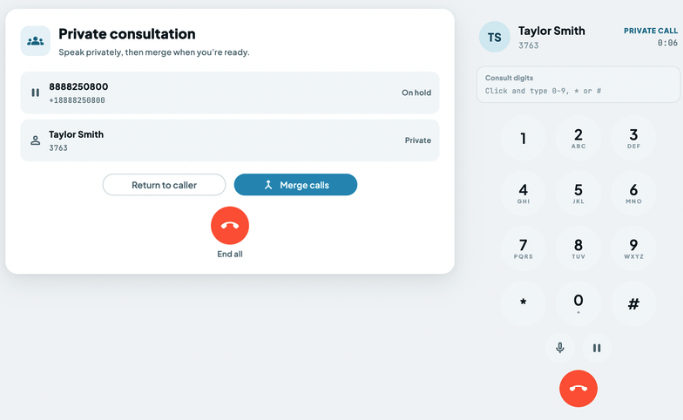
Once the secondary call is answered you will be on a private consultation. Click the blue button to merge the calls together into a three way call 
<img src="/assets/desktop-softphone/8-image.png" width="683" height="420" alt="Making and Taking Calls with the Dial Pad" loading="lazy" decoding="async">
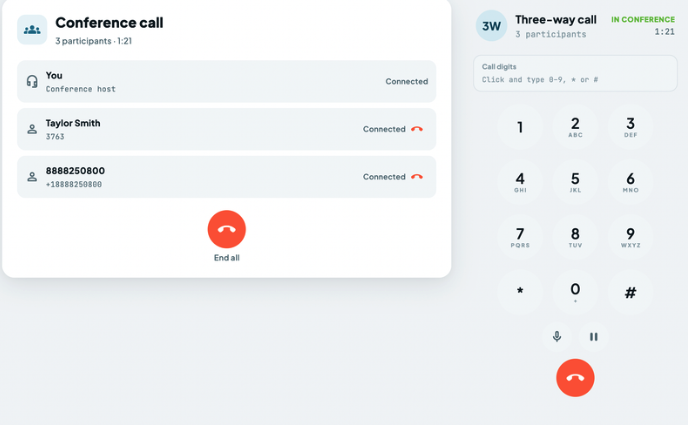
From here you can speak to both contacts, as well as end the conference, or a specific caller’s line. 
<img src="/assets/desktop-softphone/9-image.png" width="688" height="425" alt="Making and Taking Calls with the Dial Pad" loading="lazy" decoding="async"></li>
<li><p>End call </p>
</li>
</ol>

### Additional Softphone Features

<img src="/assets/desktop-softphone/10-image.png" width="958" height="636" alt="Additional Softphone Features" loading="lazy" decoding="async">

<ol>
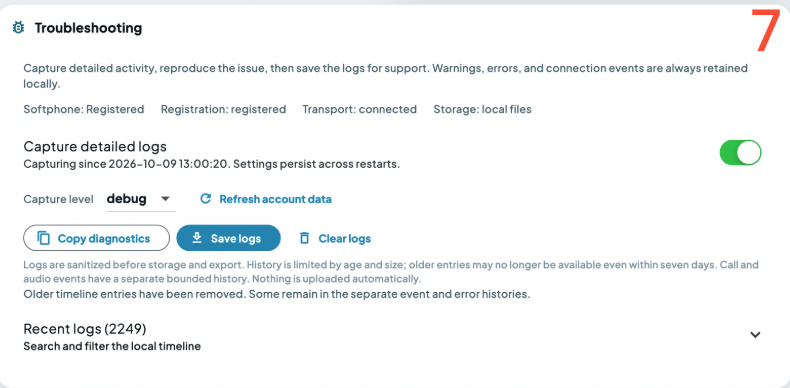
<li><p>Queue Status - For agents in our Queue feature only. Adjust your queue status at the top of the page. You can mark ready, unready, or even log in or out of the queue</p>
</li>
<li><p>Home - Displays all of your inbound and outbound calls from your latest session and allows you to call that person again using the black phone button. Additionally, you can search for calls by phone number.</p>
</li>
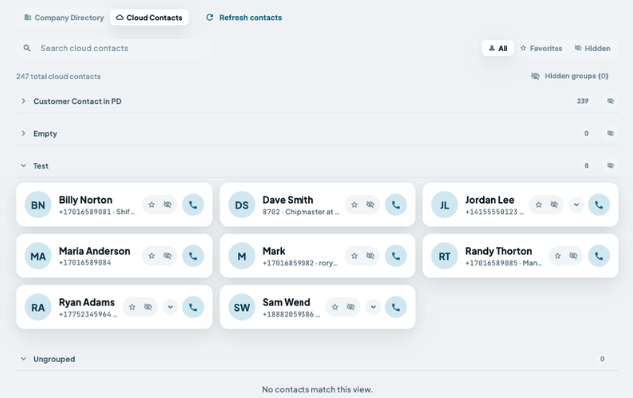
<li><p>Contacts - Allows you to view or search your list of VirtualPBX contacts and call them directly:</p>
<img src="/assets/desktop-softphone/11-image.png" width="633" height="398" alt="Additional Softphone Features" loading="lazy" decoding="async"></li>
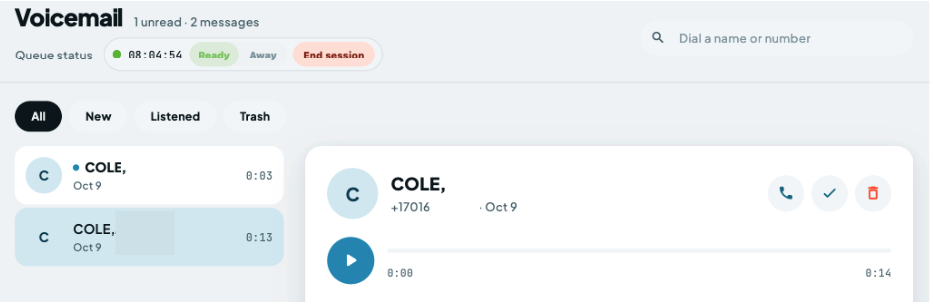
<li><p>Voicemail - Access the voicemail history and listen to voicemails for your user directly from the interface. You can listen to the message or call the other party back.</p>
<img src="/assets/desktop-softphone/12-image.png" width="933" height="306" alt="Additional Softphone Features" loading="lazy" decoding="async">
Here you can review all voicemails, play them back and read the transcripts, and call back callers who have left voicemails </li>
<li><p>Settings - </p>
<img src="/assets/desktop-softphone/13-image.png" width="265" height="167" alt="Additional Softphone Features" loading="lazy" decoding="async"></li>
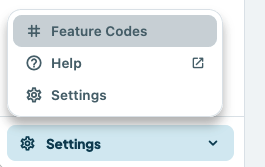
<li><p>Feature codes: Information on all Feature Codes </p>
</li>
<li><p>Help: Launches our documentation site for assistance </p>
</li>
<li><p>Settings: 
</p>
<img src="/assets/desktop-softphone/14-image.png" width="915" height="666" alt="Additional Softphone Features" loading="lazy" decoding="async"></li>
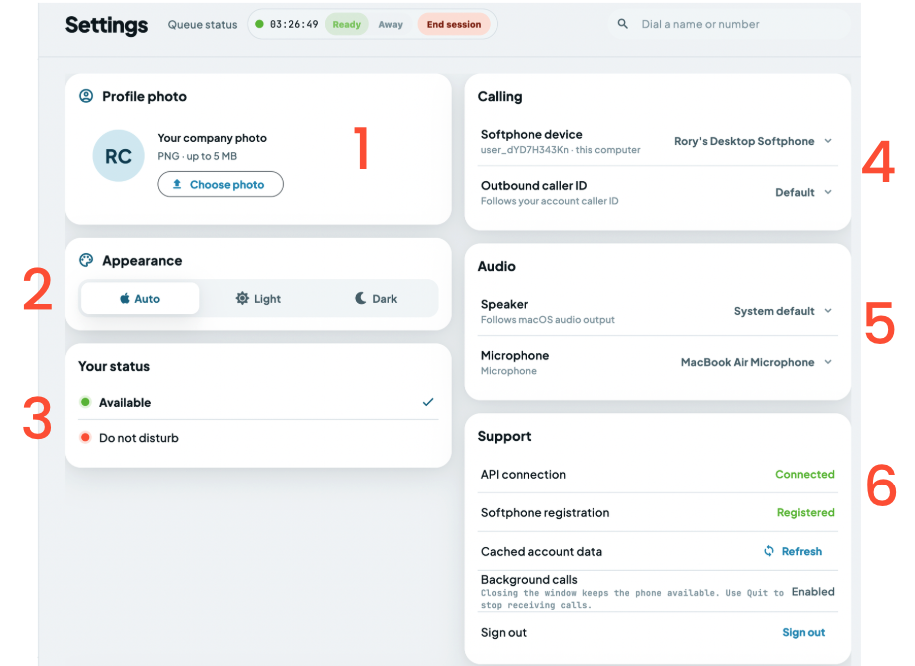
<li><p>Profile Photo: Upload a photo up to 5mb for internal contacts to see</p>
</li>
<li><p>Appearance: Auto will choose Light Mode, change to Dark Mode here </p>
</li>
<li><p>Your Status: Change to Do not disturb here to forward calls to voicemail (please note you will need to change this status back to available when you are ready to receive calls) </p>
</li>
<li><p>Calling: If you have multiple VoIP Devices on your user you can change the Softphone Device here, as well as change your Outbound Caller ID if you have a unique ID on your user </p>
</li>
<li><p>Audio: Change your speaker and microphone here - system default will be whatever the audio device that plays other audio on your system is </p>
</li>
<li><p>Support: Review your connections and refresh your cached data here</p>
</li>
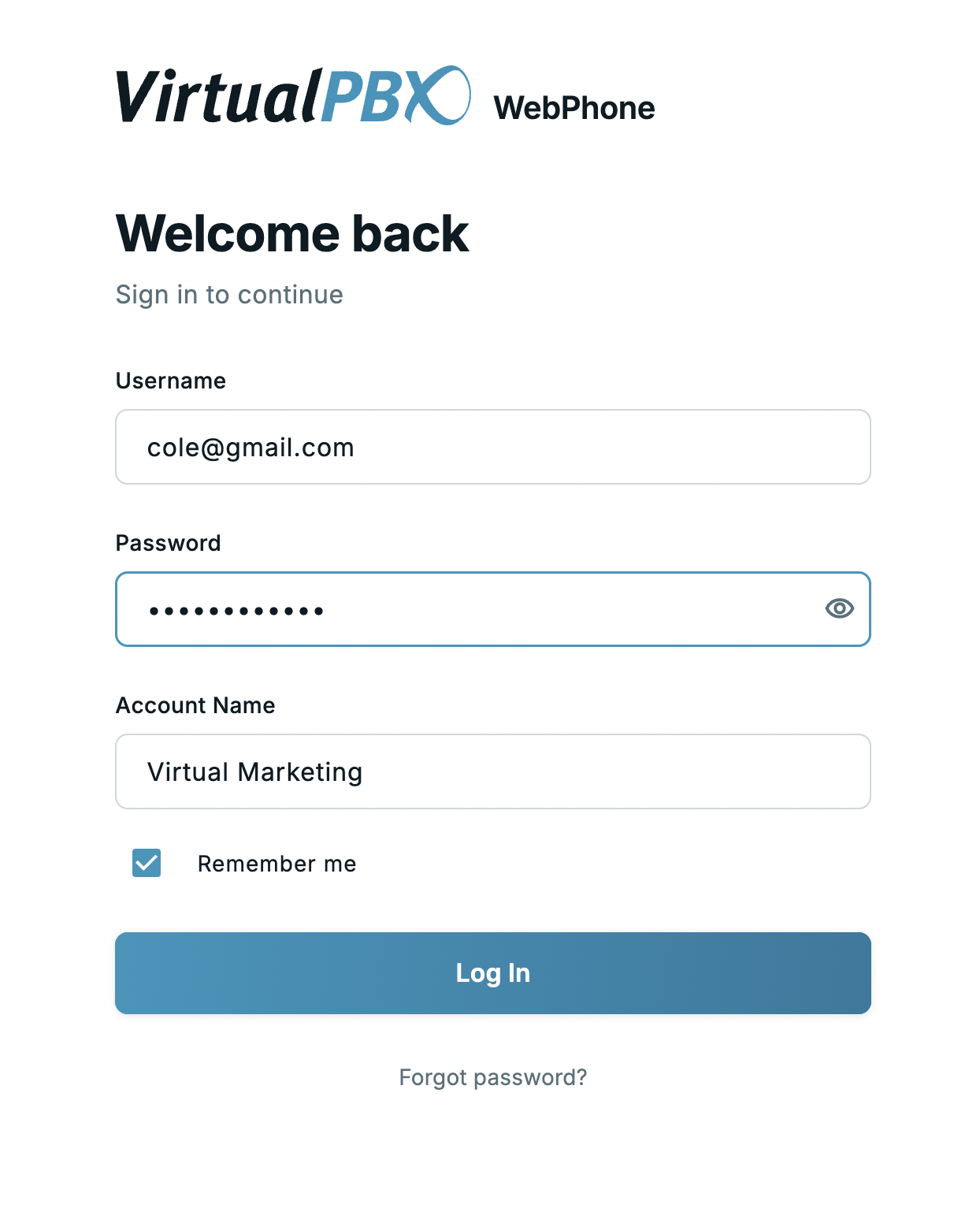
<li><p>Troubleshooting: If you run in to issues where you need our Support Team’s help, we may ask you for the Application Logs. Make sure to turn on capturing of detailed logs, clear the logs, and then replicate the issue you are reporting. Once done, you can save the logs and send to our team </p>
</li>
</ol>

<img src="/assets/desktop-softphone/15-image.png" width="790" height="388" alt="Additional Softphone Features" loading="lazy" decoding="async">