---
notionId: "1bcf0d27c7988010af33c8fa31ed1c8d"
product: "smarter-voice"
cluster: "messaging"
intent: "smarter-voice.virtualtext-forward"
docSlug: "virtualtext-forward"
task: "Forward texts from Smarter Voice"
title: "Forward texts from Smarter Voice | VirtualPBX"
meta_description: "Text Forward is a feature that enables a number, or numbers, on your account to forward to an email or webhook when that number receives a text message. This"
answer: "Text Forward is a feature that enables a number, or numbers, on your account to forward to an email or webhook when that number receives a text message. This can not be applied to numbers that are already using VirtualText at this time."
audience: "admin"
updated: "2026-09-24"
legacy: []
headings: [{"depth":2,"text":"VirtualText Forward","id":"virtualtext-forward"}]
lint: ["meta-answer","answer-first"]
---

Table of Contents

## VirtualText Forward

If this option is not available within your dashboard, you may be on a plan that does not include Add-Ons. Please reach out to our Customer Service Team to discuss upgrading your plan and turning this feature on by emailing [experience@virtualpbx.com](mailto:experience@virtualpbx.com) or calling +1 (888) 825 0800 

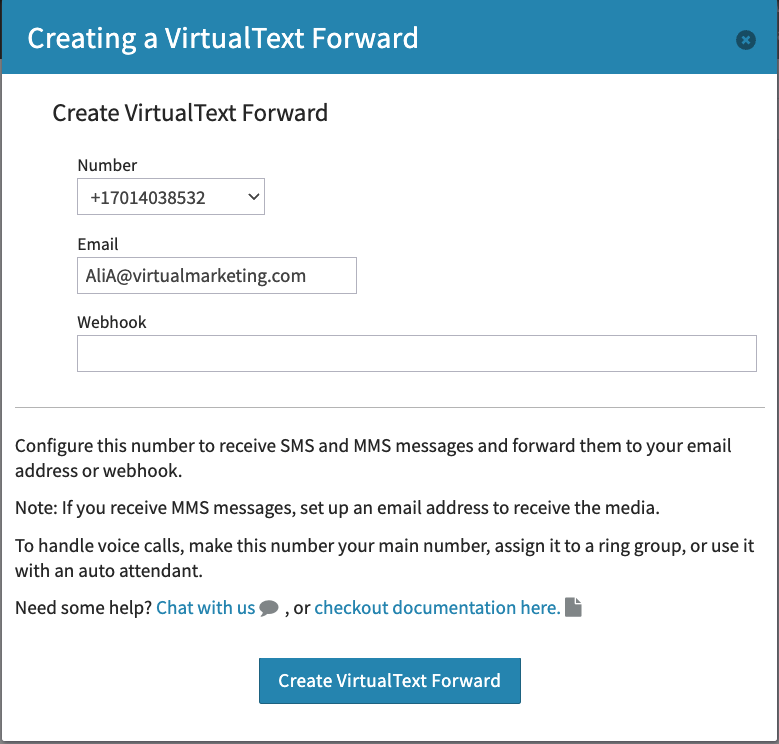
Once the feature is turned on, hover over the black bar on the three line menu to choose ‘Messaging’ 

<img src="/assets/virtualtext-forward/image.png" width="829" height="650" alt="VirtualText Forward" loading="lazy" decoding="async">

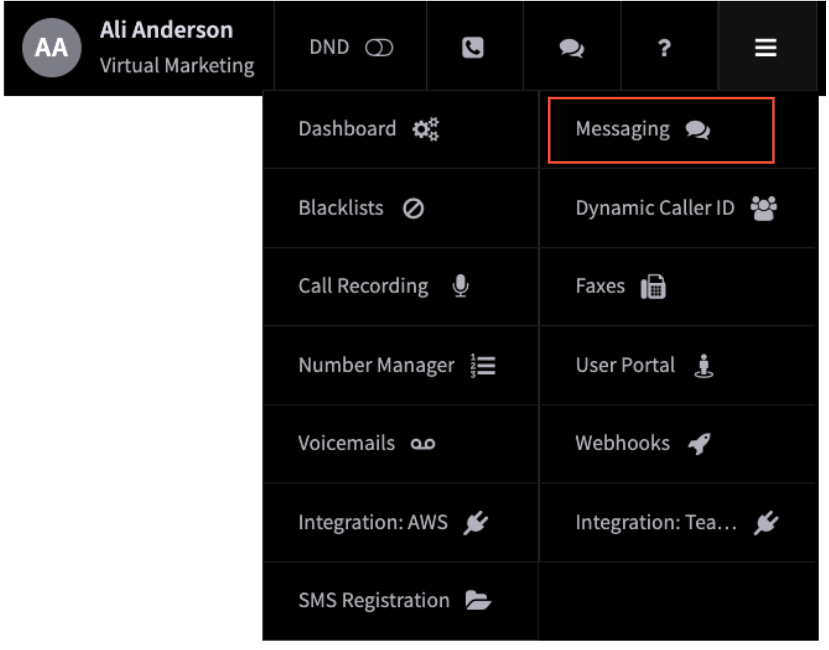
The Messaging page is where you’ll be able to view VirtualText, Text Numbers, and VirtualText Forward. 
<img src="/assets/virtualtext-forward/2-image.png" width="883" height="277" alt="VirtualText Forward" loading="lazy" decoding="async">


 1. Choose VirtualText Forward

<ol>
<li><p>Add Number</p>
<img src="/assets/virtualtext-forward/3-image.png" width="779" height="744" alt="VirtualText Forward" loading="lazy" decoding="async"></li>
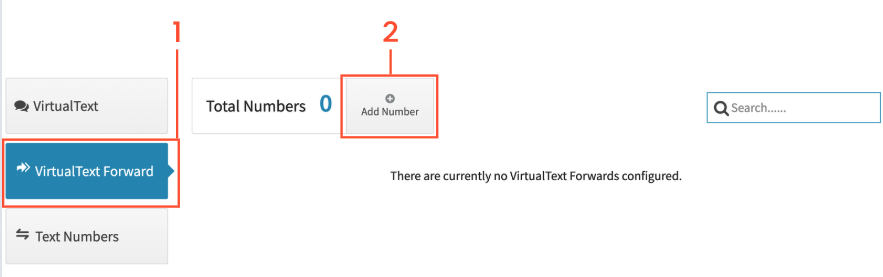
<li><p>Choose which number you would like to receive forwarded texts from. All numbers beside VirtualText numbers will be available. </p>
</li>
<li><p>Enter the email address that should receive those messages or paste in the webhook url. Once this is completed, just click on Create Text Forward.</p>
</li>
<li><p>Next, test your message delivery by clicking send a test message. Your message will display what number is the message sent from, what number is sent to, and the message content.</p>
</li>
</ol>

Please note MMS is sent as an attachment on emails and is not available in your webhook’s payload.